


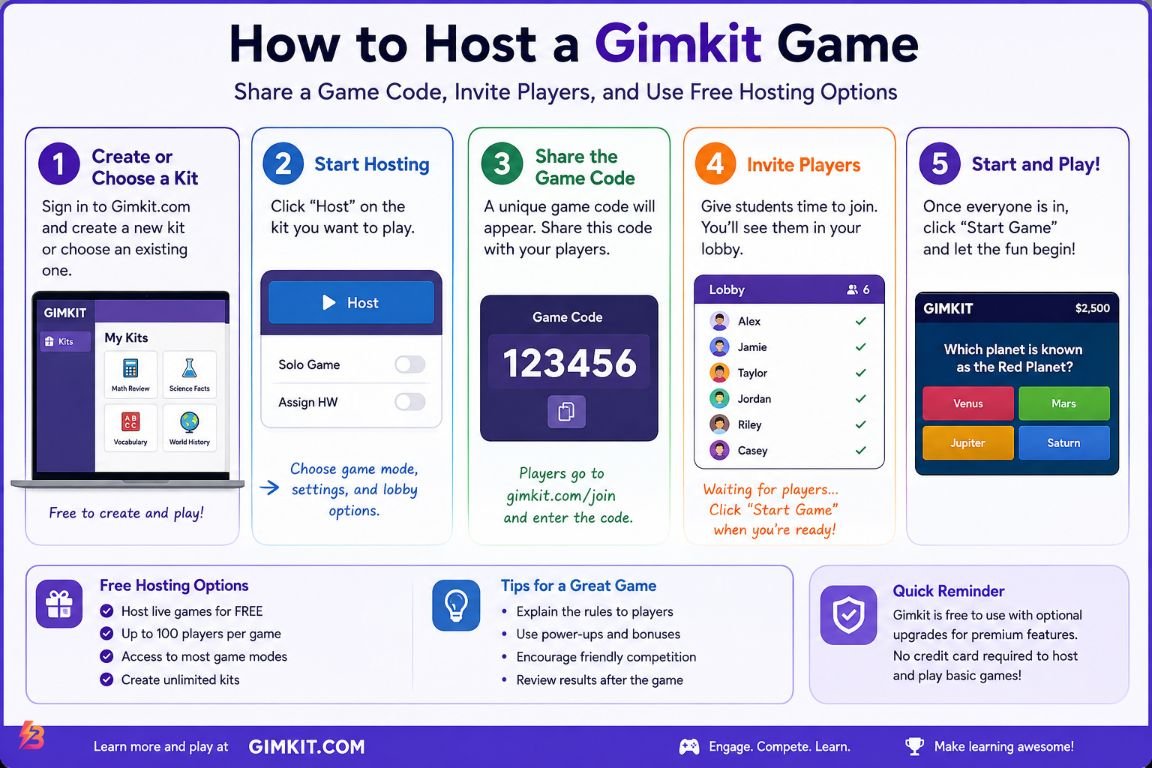
A Gimkit host starts a live educational game, selects the questions and game mode, adjusts the available settings, and shares access with players. Teachers can launch a session from their Gimkit dashboard, while students join using a game code, QR code, or direct link. The process is straightforward once you know where to find the hosting options.
If you’re searching for Gimkit host, this guide explains how to start a game, whether free hosting is available, how the joining process works, and what to check when players cannot enter a session.
What Is Gimkit Host?
Gimkit is an educational game platform that turns question-and-answer activities into interactive games. Students answer questions while playing, and the selected game mode determines how the session works.
The host manages the live session. This typically involves choosing a question set, selecting a game mode, setting a goal, and deciding when to start. Depending on the mode, the host can also participate as a player or observe the game.
How to Host a Gimkit Game
Follow these steps to host a live session through the official Gimkit website.
1. Open Gimkit and Choose a Kit
Visit Gimkit’s official website and sign in to your account. From your dashboard, choose the question set, known as a kit, that you want to use.
You can also open a kit and select the live-play option from its page. Make sure the questions match the subject or lesson you want to review.
2. Select a Game Mode
Click Play Live to open the mode selection screen. Browse the available modes and choose one that suits your class or group.
Different modes offer different objectives and styles of play. Some emphasize individual competition, while others focus on teamwork or exploration. Availability may depend on your plan and the current mode rotation.
3. Configure the Game Settings
Select the options presented for your chosen mode. Depending on the game, these may include the game goal, whether late joining is allowed, class settings, and nickname controls.
Review these settings before continuing. For example, disabling late joining can help prevent unexpected players from entering after the session begins. A nickname generator can also help keep player names appropriate.
4. Open the Lobby and Share Access
Click Continue to create the live session. Gimkit opens a lobby displaying the game code and player-joining options.
Share the code with your students or participants. You can also use the QR code or direct join link. Wait for players to appear in the lobby and check their names where the selected mode provides that option.
5. Start the Game
When everyone is ready, click Start Game. The exact location of the button depends on the selected game mode.
Once the session starts, use the available host controls to monitor players, view the leaderboard, adjust supported settings, or end the session early if necessary.
Is Gimkit Host Free?
Gimkit offers a free plan called Gimkit Basic, as well as a paid Gimkit Pro plan. The free plan provides access to featured game modes, while Pro offers access to all game modes, including Pro-exclusive modes. Some restrictions apply to free-plan users.
If you want to host a Gimkit game free, start by signing in to the official website and checking which modes are currently available to your account.
Keep in mind that the free plan is not unlimited in every respect. Student accounts have hosting restrictions, including a maximum of five players when hosting with student logins. Other player limits may vary depending on the game mode and account type.
For the latest details about plans, features, and restrictions, check Gimkit’s current account options before starting a session.
Gimkit Host Join: How to Enter a Live Game
If you want to join a game rather than host one, you need the joining information shared by the host.
- Open the joining page: Visit Gimkit’s official join page in your browser.
- Enter the game code: Type the code provided by your teacher or game host. If a direct link was shared, you can open that instead.
- Enter your name: Follow the prompts to enter a name or accept the nickname assigned by the host’s nickname generator.
- Wait for the game to begin: Once you have joined the lobby, wait until the host starts the session.
Can You Join Without a Game Code?
You may not need to type a code if the host shares a direct join link. Players can also scan the QR code displayed by the host. Both options provide a way to access the intended live session without manually entering its code.
However, you cannot use a random code to guarantee access to a particular game. Ask the host for the correct joining details if you have not received them.
Common Gimkit Hosting Problems and Solutions
If your Gimkit host game is not working as expected, try these checks.
- The code does not work: Confirm that you entered the code correctly and ask the host to verify that the session is still available.
- The game will not load: Refresh the page, check your internet connection, and try opening the website again.
- Players cannot join: Ask the host to check the lobby, joining settings, and player limit for the selected mode.
- A student joins late: Check whether the host enabled the late-joining option. If not, the host may need to adjust the setup or start another session.
- The wrong game opens: Use the specific link or code provided by the host rather than an old link from a previous session.
These checks address common access issues without assuming that every problem has the same cause. If the problem continues, check the platform’s help resources or contact its support team.
Tips for Hosting a Successful Gimkit Session
A few simple preparations can make a live game easier to manage.
- Test the kit beforehand. Review the questions and check that they suit the lesson.
- Choose an appropriate mode. Consider the age of the players, available time, and whether you want individual competition or teamwork.
- Check the lobby before starting. Give participants time to join and review names when appropriate.
- Share the code carefully. Send the code or link to the intended participants.
- Set a clear goal. Choose a suitable time limit or other available game objective.
- Review the results. Use the available game reports to review class and individual performance when the feature is supported.
These habits help make the session more organized without adding unnecessary steps.
Frequently Asked Questions
Can I host a Gimkit game for free?
Yes. Gimkit Basic provides access to featured game modes. Some features and modes are restricted to paid plans, so check the current plan details before hosting.
How do I get a Gimkit host code?
Start a live game and open its lobby. Gimkit displays the game code there. You can share it with participants or use the available QR code and direct link options.
How do I use Gimkit Host Join?
Open Gimkit’s official joining page, enter the code supplied by your host, and follow the prompts. If you receive a direct join link, you can use that instead.
Can I host a Gimkit game as a student?
Student accounts can host games, but hosting restrictions apply. Student logins have a five-player maximum, and available features may vary by account type.
Can a host play in the same Gimkit game?
In some 2D game modes, hosts can choose to join as a player or spectator. The available controls and experience depend on the selected mode.
Final Thoughts
Hosting a Gimkit game involves choosing a kit, selecting a mode, setting the available options, and sharing the session’s joining details. Once players enter the lobby, the host can start the game and manage the session using the controls provided.
Whether you’re looking for free Gimkit hosting options, trying to start a classroom review, or searching for joining instructions, the process begins with the official website. Check the features available to your account, share the correct game details, and make sure participants are ready before starting the session.
